
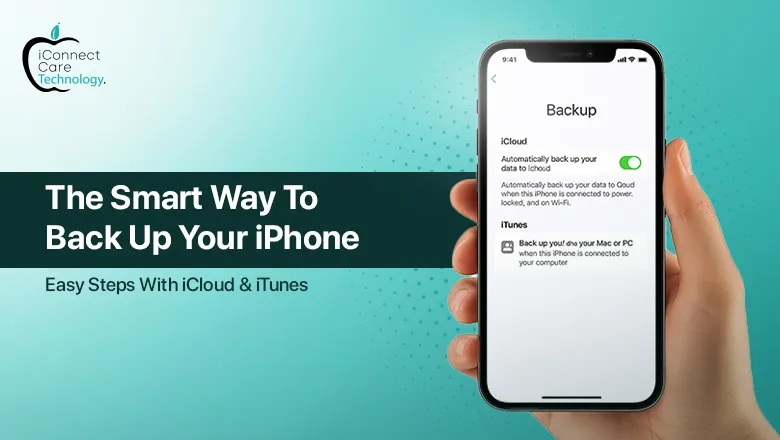
Why back up your iPhone?
Option 1: Backing Up Your iPhone with iCloud
iCloud is Apple’s cloud-based storage solution. You can back up your iPhone automatically over Wi-Fi with iCloud. Below are step-by-step instructions.
Step-by-Step Instructions:
- Connect to Wi-Fi.
- Go to Settings > [Your Name] > iCloud
- Tap on iCloud Backup.
- If iCloud Backup is off, turn it on.
- Tap Back Up Now.
Keep your device connected to Wi-Fi until the backup finishes.
Tip:
- iCloud offers 5GB free storage; if your file is larger than that, you must upgrade.
- You can backup automatically using iCloud whenever your device is charging, on WiFi, and the screen is locked.
Option 2: How to Backup your iPhone via computer using iTunes (and Finder for macOS Catalina or later)
If you’d rather backup locally onto a computer instead of iCloud, you can use iTunes (or Finder).
Step-by-step instructions:
- Connect your iPhone (or iPad) to your computer using a USB cable.
- Open iTunes (or Finder on new Macs).
- Once you see your iPhone appear, select your iPhone.
- In the Backups section, select Back up now.
- For further security, you can check Encrypt local backup. If you select Encrypt local backup you will have to establish a password.
Your backup will be saved to your computer and will be ready to restore whenever you want.
Which option is best?
Live with iTunes (or Finder) if you prefer backup files locally or you have very little space in iCloud.
To maximize security, use iCloud and iTunes or Finder; use both.
Need Assistance?
If you are ever uncertain about the process, or if you experience challenges when backing up or restoring your device, then iConnect Care Technology in Bangalore can help you. They are recognized for professional and trustworthy service for all kinds of Apple devices. Whether it is device data recovery or getting tech support, their friendly experts are there for you with custom assistance.
And if you have an Apple device that just does not work the way it should, or if you suspect a hardware issue, then they also have the best iPhone repair in Bangalore. Whether it requires replacement of a cracked screen or simple battery troubles, their technicians will provide the required service with authentic parts on time.
Common Mistakes When You Backup
Out of iCloud space – Ensure you always check available iCloud space.
Forgetting your encryption password – If you have encrypted your local backup, please remember the password!
Thinking that apps and photos have been backed up – Since some apps have their own data separately stored, double check for them and verify where photos are stored.
Final Thoughts
And if you do get into trouble, then use professionals who understand your device. Wherever you are, great, trusted shops exist, like iPhone repair Bangalore, to always stay one step ahead of tech trouble.